

Need to cut an extra second off the tail so your program fits? You can make that edit right here on the site—no need to open your DAW for a quick job.
Our free browser Audio Editor brings together precise trimming, fades, gain and normalization controls, EQ, stereo and phase information, and loudness and peak readings. Use it anytime, whether you are preparing a record or making a quick edit. We will keep improving it over time.
Jump to the Audio Editor on this page →
1. Add your audio
Open the editor and choose Add Audio. Select your file and wait until the waveform appears and the status says the audio is ready. The editor accepts WAV and MP3; loading an MP3 does not restore information lost during MP3 compression. Use a lossless original when you have one.
The editor’s file and memory limits are separate from the record uploader’s limits. If a large file cannot be opened on your device, use a smaller project or your usual audio software.
2. Find the unwanted tail
Listen to the ending first. Decide whether you are removing unused silence or cutting into a fade, reverb or deliberate pause. Zoom in on the waveform and select the part you want to keep or remove. The From and To fields show selection times in seconds.
For a program that is 20:04, a 20-minute option needs at least four seconds removed from the complete side, including gaps. Removing only one second would leave 20:03. If the extra time is part of the music or its intended pacing, choose a longer available record option instead.
3. Choose the right edit
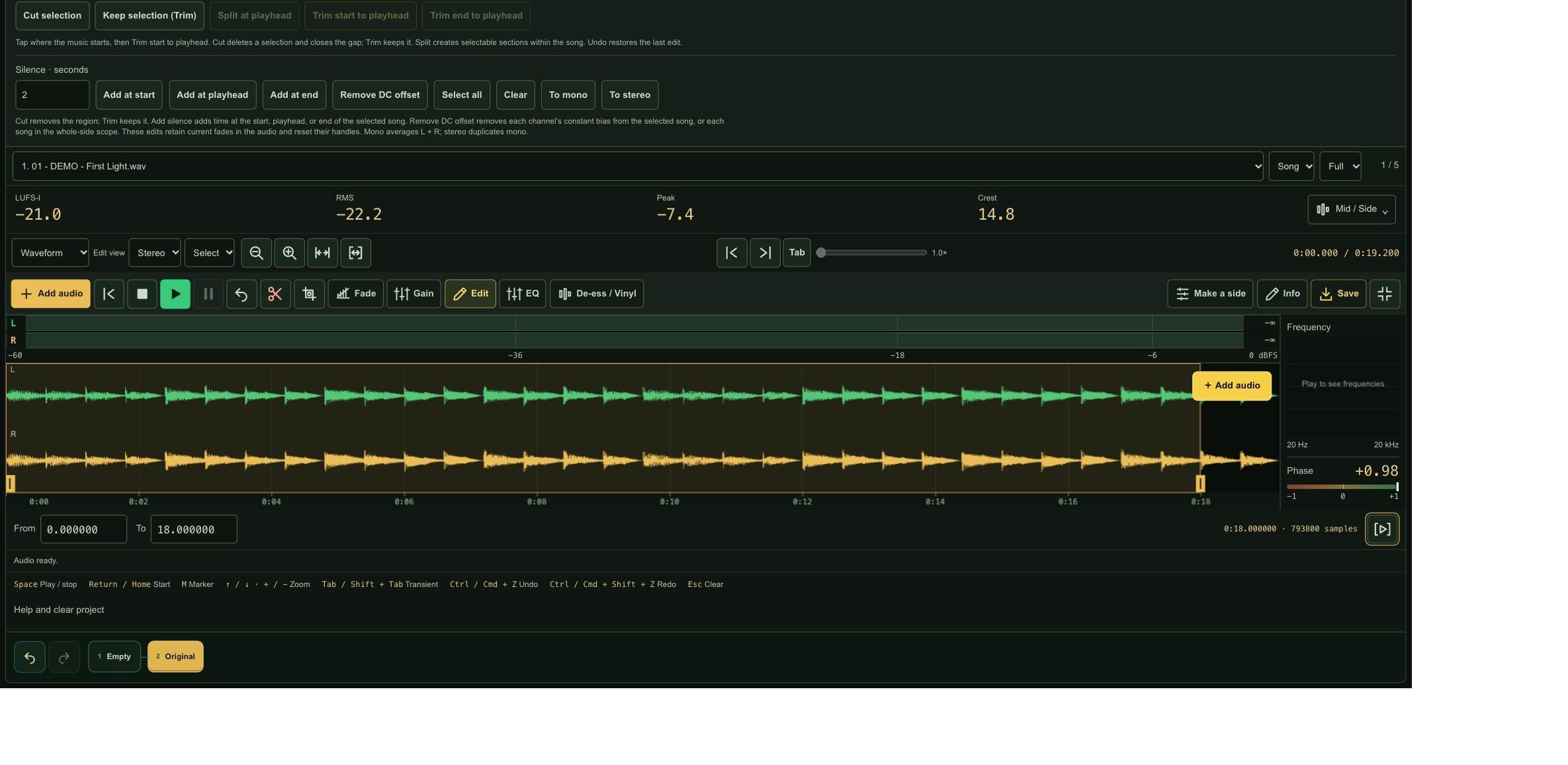
- Cut selection removes the selected region and closes the resulting space.
- Keep selection (Trim) keeps the selected region and discards what is outside it.
- Trim end to playhead removes the audio after the playhead. Position the playhead at the ending you want first.
For a simple tail edit, work on the selected song in the Song view. Select the wanted range from the start to your chosen ending, then use Keep selection (Trim), or place the playhead and use Trim end to playhead. Listen back. If you cut too much, Undo lets you go back.
4. Add a fade if the ending needs it
Use the Fade controls for an intentional fade-in or fade-out. Listen to the edited ending so it does not stop abruptly. Your creative spacing still belongs to you: do not remove a meaningful pause only because it looks quiet on the screen.
5. Check the readings without chasing a number
LUFS describes loudness; RMS shows average signal level; peak readings help reveal high levels; crest describes the difference between sample peak and RMS. Stereo and phase information can help you inspect channel behavior. LUFS and true peak are estimates.
These are useful editing tools, not an automatic mastering approval. An edit does not need aggressive normalization just because a number looks low. Use gain, EQ or other processing only when it serves the audio, and listen after making changes.
6. Save a new WAV
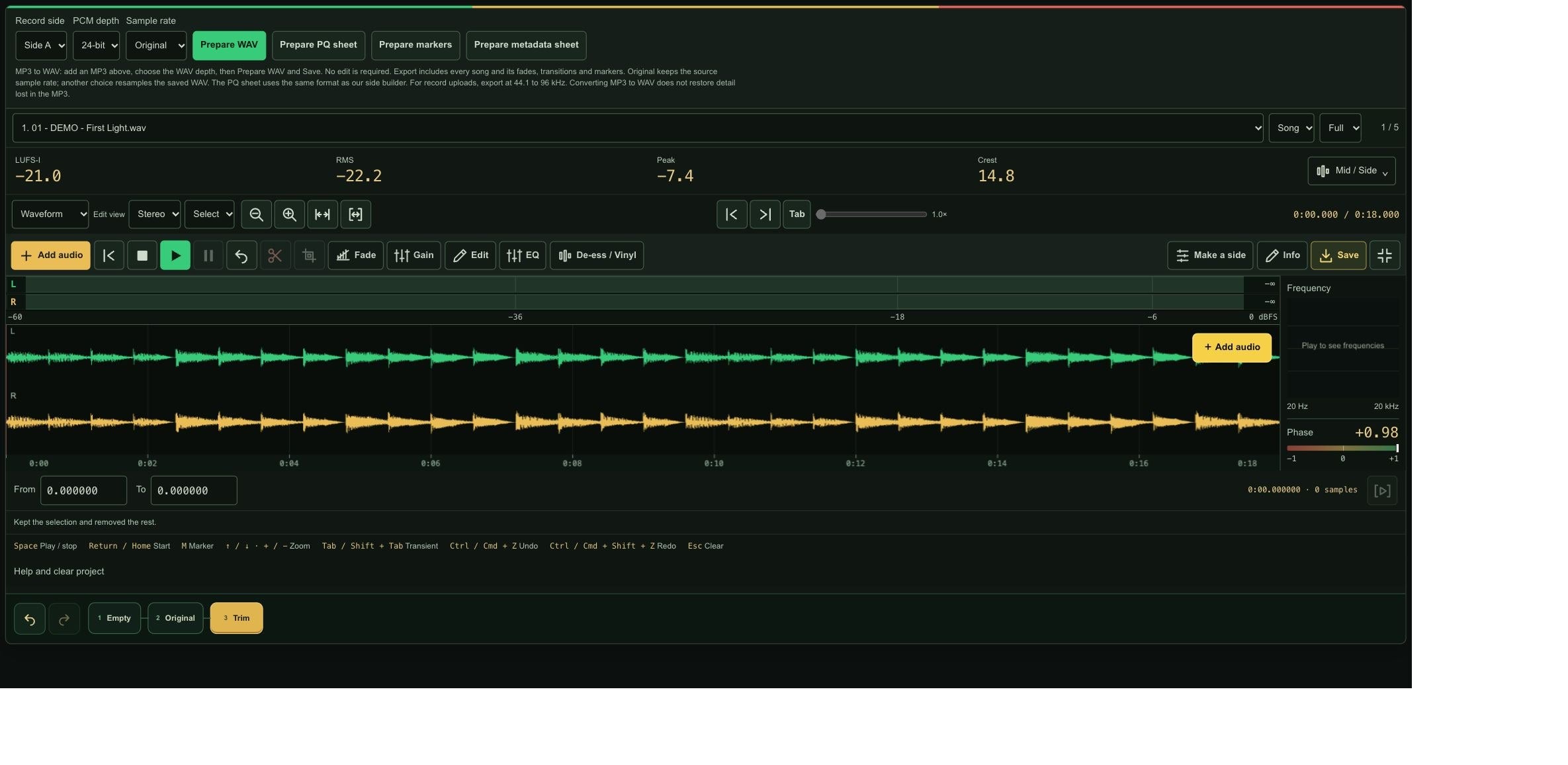
Open Save, review the output settings and export your edited WAV. Choose the intended song or whole-side scope before saving. The edited file is a new download on your device; your source file is not overwritten.
For the record builder, use a supported WAV and keep the project’s side files at the same sample rate. A format conversion does not create extra detail that was absent from the source.
7. Put that edited file into your record project
Saving is not the same as uploading to your order. Return to the builder or uploader and choose the new WAV you just saved. Replace the old selection, check the new duration, and review and confirm the song boundaries and gaps again. Complete the final upload step and inspect the cart attachments.
If you are supplying individual songs, the standard builder adds two seconds between files. If you are uploading already-finished sides, their spacing is preserved. Learn how five songs produce four gaps, how to keep your musical pauses, and how the timing documents help our production software in the record builder guide.
Build your sides in the editor, then upload them to your record
You can prepare complete Side A and Side B programs in the free Audio Editor before using the record builder. Downloading a file and uploading it to your record are two separate steps:
- Make Side A in the Audio Editor. Add and arrange your songs, use Make a side to review the sequence and gaps, and listen to the finished side. Include all gaps and musical tails when checking the time allowance for your chosen record option.
- Download the finished Side A WAV. Open Save, select Side A, check the output settings, choose Prepare WAV, then use the download link. Give the file a clear name such as My Release - Side A.wav. Repeat for Side B and keep both downloads somewhere you can find them.
- Return to the record builder and choose already-prepared sides. Select your downloaded Side A WAV in the Side A audio field and your Side B WAV in Side B audio. These are the audio upload fields for your record project.
- Review and confirm. Check each side’s runtime, intended song boundaries and existing gaps. Prepared-side uploads preserve the spacing you already made; they do not need another set of added gaps.
- Finish the builder upload. Complete the required project details and artwork, wait for the final upload to finish, and inspect the cart attachments before checkout. This upload creates the saved file links attached to your record project; those links carry into the order when you complete checkout.
What is the PQ sheet, and why is there a ZIP if I have no artwork?
The PQ sheet is a timing document for your record program. It lists the track sequence and timing information so our production workflow can follow the intended side and song boundaries. It is not an audio file and does not replace your Side A or Side B WAV.
The editor’s downloads: you can save the finished WAV and prepare a PQ sheet, markers and metadata as separate downloads. The editor does not currently bundle those downloads into one ZIP. Keep them together for your own reference. Select the WAV itself in each record audio-side field, not a ZIP or CSV.
The record builder’s ZIP: when you complete the standard builder’s final upload, it automatically creates LCVR-Release-Files.zip. Even if your selected record option needs no artwork, that package still includes PQ sheet.csv, Confirmed banding.json, and readable and structured Production Summary files. The cart shows this as a Release ZIP. You do not need to create fake artwork or manually make an empty ZIP.
If the selected option requires artwork, the builder includes that artwork in the same release package and labels the attachment Artwork ZIP. Required artwork still needs to be supplied. The side WAVs are uploaded and linked separately; the documentation ZIP supports them. Finish checkout so the saved file links carry from the cart into your order.
Nothing transfers automatically. Saving in the editor does not replace an audio file already selected in the builder or attached to your cart. Select your newly downloaded WAVs in the correct record fields, then complete the builder’s review and upload steps.
How your files are handled
The editing work happens in your browser. The editor does not automatically send your edits into a record order or replace a file already attached to your cart. Download the edited file and explicitly select it in the record project when you are ready.
The record builder’s final upload is a separate step. That is where side audio, saved file links and the release’s timing and production information are attached to the project for our workflow. Keep your originals and your edited downloads, and keep the page open while work is in progress.
Free whenever you need it
You do not need a separate paid editor for a quick trim just to use our site. The Audio Editor is free to use, and we will continue refining the tools and the experience over time. For a full mix, complex restoration or a large mastering session, use the workflow that suits your project.
Build a record · Estimate your project
Try the free Audio Editor
Add your audio below. You can expand the editor for more room. Work stays in this browser until you save a file or explicitly upload a finished file to a record project.
Drag the top IN / OUT handles to set length; drag the round curve handles up/down to change the shape. Fades stay adjustable. Playback and export include them.
Uses the selected song or whole-side scope above. LUFS gain is capped by the estimated TP ceiling, without limiting; the target may not be reached.
Tap where the music starts, then Trim start to playhead. Cut deletes a selection and closes the gap; Trim keeps it. Split creates selectable sections within the song. Undo restores the last edit.
Cut removes the region; Trim keeps it. Add silence adds time at the start, playhead, or end of the selected song. Remove DC offset removes each channel’s constant bias from the selected song, or each song in the whole-side scope. These edits retain current fades in the audio and reset their handles. Mono averages L + R; stereo duplicates mono.
Markers in selected song
Five songs maximum. Default: real 2-second gaps, with banding cues halfway through each gap, matching our side builder. Song-start and gap-boundary markers are included too. Crossfades replace gaps.
MP3 to WAV: add an MP3 above, choose the WAV depth, then Prepare WAV and Save. No edit is required. Export includes every song and its fades, transitions and markers. Original keeps the source sample rate; another choice resamples the saved WAV. The PQ sheet uses the same format as our side builder. For record uploads, export at 44.1 to 96 kHz. Converting MP3 to WAV does not restore detail lost in the MP3.
Preview to hear this tool on the selected Stereo, Mid or Side view.
Mid / Side
Help and clear project
Add audio, then press the play triangle. Drag across the waveform to select audio; the scissors remove it and Trim keeps it. Pinch or use the magnifying glasses to zoom. Fade opens adjustable length and curve handles. From and To are exact sample-aligned times in seconds. Focus the waveform to use keyboard shortcuts. Enable Tab for transient navigation; Escape exits that mode.
Edit view selects Stereo, Left, Right, Mid (centre), or Side (difference) for listening, gain, EQ, de-essing and HF limiting. Left and Right edits keep the other channel unchanged and retain stereo output. Whole-side Left, Right and Side processing skips mono songs. This is not vocal or stem separation. Cuts and trims keep both channels aligned. Apply EQ commits the chosen channel or component; Undo reverses the edit. Apply or Reset the EQ before saving.
For MP3 to WAV, add your MP3 and open Save. All imported songs must share a sample rate. Audio stays on this device and is lost on refresh. The bottom history strip restores saved edit steps. Undo and Redo move through them; a new edit replaces the later branch. Up to 24 states and 256 MiB of extra audio are kept; the earliest steps may be removed for space. The project supports up to 256 MiB of decoded source audio. Temporary processing needs additional memory.
Full readings measure the whole file; Live uses recent playback. LUFS is loudness, RMS is average level, Peak is estimated true peak, and Crest is the peak-to-average difference. The right-hand display shows frequency and phase; Mid / Side opens the component levels. Mid is (L + R) / 2; Side is (L − R) / 2. Phase is unavailable when either channel is silent. These readings do not change the audio.
HPF is a low cut; LPF is a high cut. Select a filter, turn Filter on, and drag its point or set the cutoff frequency. Choose a 12 or 24 dB/oct slope. Both filters start off and follow the Stereo, Mid or Side edit view. Original compares the unprocessed audio; Apply EQ keeps the change.